|
Hi [FIRST.NAME],
Welcome to the iolo affiliate newsletter for May. In
the
last edition of the affiliate newsletter
we provided you with
a number of resources to help you effectively market
iolo's System Mechanic 14.5 and System Mechanic 14.5
Professional.
In this edition of the newsletter
we're going to cover the following items:
-
PCMag.com not only makes System Mechanic 14 'Editors'
Choice', it's also #1 in "The Best Tune-Up Utilities"
category! [We beat all the competition including; SlimWare,
AVG, Ashampoo, Comodo, Norton and more].
-
iolo article; "5 Ways to Improve Internet Speed
on a Windows Computer".

First off, to help you with your promotion for
System Mechanic® 14.5
and/or
System Mechanic 14.5 Professional®,
we've got a deal that your customers will want to see!
Through
this landing page, your traffic/visitors can either
get $20 off System Mechanic 14.5, or purchase
System Mechanic 14.5 Professional for just $5 more i.e.
$34.95. [FYI This title usually retails for $69.95, so
this is a
huge
discount].
|
Coupon Deal:
Get $20 off System Mechanic, or go Pro for just $5 more
i.e. $34.95. [Save $35!]
Coupon Code:
N/A
Valid From: Now
Valid To: June 30, 2015 |
|
<a href="http://click.linksynergy.com/fs-bin/click?id=[SITE.CODE]&offerid=258005.10000111&type=3&subid=0"
>Get $20 off System Mechanic, or go Pro for just $5
more i.e. $34.95. [Save $35!]</a><IMG border=0 width=1
height=1 src="http://ad.linksynergy.com/fs-bin/show?id=[SITE.CODE]&bids=258005.10000111&type=3&subid=0"
> |
PCMag.com Rates
System Mechanic 14 As The Best Tune-Up Utility!
As we
discussed in
last month's newsletter, iolo's
System Mechanic 14 has been getting some great reviews by peers
in the IT business. The great reviews keep on coming! PCMag.com has recently not only made our
flagship title their 'Editors' Choice', System Mechanic 14 is
also ranked as #1 in 'The
Best Tune-Up Utilities'!
PCMag.com
System Mechanic 14
May 8, 2015
http://www.pcmag.com/article2/0,2817,2371155,00.asp
"iolo System Mechanic 14 is a slick suite of tune-up
tools that can dramatically improve your PC's
performance. If your computer is sluggish, download this
utility." Read the full review
here.
Key quotes:
-
"With this iteration, Iolo System Mechanic includes an
unexpected and welcome new feature, PowerSense, which
detects your PC's activity and throttles the CPU up or down
as needed."
-
"Unlike most PC tune-up utilities, such as PC Tools
Performance Toolkit, which limit you to three licenses, Iolo
System Mechanic 14 lets you install the software on any
number of computers, provided that it's not for business
purposes. This is a welcome (and needed!) feature in the age
of the multi-PC household. More companies should follow
suit."
-
"What's new this time around is a second, dedicated
LiveBoost Window that lets you see how Iolo System Mechanic
14 makes on-the-fly CPU and RAM usage tweaks."
-
"What I find truly cool is that Iolo System Mechanic 14
doesn't just serve up a list of problems—it provides blurbs
that explain how these problems slow performance."
-
"Program Accelerator took approximately 15 minutes to work
its magic, and, when it was done, I discovered that it had
realigned thousands of files and hundreds of file
fragments."
-
"After I used Iolo System Mechanic 14, I saw much-improved
system performance: The GeekBench score rose to 6,369, and
the boot time decreased to 39.7 seconds. Those impressive
numbers just beat out SlimCleaner's 6,338 GeekBench score
and 41.1-second boot time."
-
"After running the tests, I also used the computer
extensively to get a sense of how the app changes the
machine's responsiveness. Iolo System Mechanic 14 delivered
a noticeable performance improvement—of special note, iTunes
and Steam opened faster in the fresh environment."
-
"...but if you desire a tool that can do more, Iolo
System
Mechanic 14, our top choice for paid tune-up utilities, is
the application to download."
Watch
the PCMag.com video review of System Mechanic 14
here.
If you have any questions/comments on the above, please email
me.
Please note:
Feel free to use the copy/graphics below on your
website/blog.
5 Ways to Improve
Internet Speed on a Windows Computer
System Mechanic's NetBooster
Optimizes Hidden Settings
Maximizing your Internet speed is a crucial step in the quest
for a faster computing experience, and one of ever increasing
importance because just about all we do with our machines
nowadays we do while connected to the web.
To help satisfy your ongoing need for better broadband,
NetBooster® has been re-architected with a whole new set of
TCP/IP optimization tests and network setting modifications
specifically for Windows versions all the way through Windows
10. The feature has both an automatic and a manual mode,
allowing you to individually optimize for specific use cases,
e.g., streaming, gaming or large file transfer. Here are just a
few highlights of what this powerful tool can do for you.
Finding the fastest server >
Improving Windows settings >
Adjusting data packet size >
Reducing latency >
Optimizing automatically or manually >
Finding the fastest server
 Before
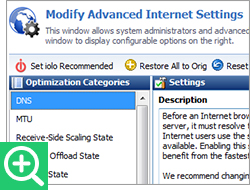
a browser can establish an Internet connection, it must resolve
the DNS name of a local web server to your computer's specific
IP address. DNS servers are the essential intermediaries that
link your system to virtually all of the resources scattered
across the web. It's important to make sure the DNS server
selected is the fastest possible one available in your area—a
task your Internet service provider does not bother to do. Before
a browser can establish an Internet connection, it must resolve
the DNS name of a local web server to your computer's specific
IP address. DNS servers are the essential intermediaries that
link your system to virtually all of the resources scattered
across the web. It's important to make sure the DNS server
selected is the fastest possible one available in your area—a
task your Internet service provider does not bother to do.
And since many DNS servers are in the public domain, software
that finds the fastest one available for a given ISP with a
specific connection in a particular location at a certain time
of day is an elegant solution to an easily identified but fairly
complex problem.
NetBooster uses this precise strategy to help optimize your
Internet connection—in this case, with an overlooked available
resource right outside your home. By searching for the
fastest possible DNS server in your area and letting you simply
click to connect to it, NetBooster can deliver increased network
speed, so you can enjoy less buffering delays and greater
bit resolution in online streaming and TCP-bound gaming.
↑ Back to Top
Improving Windows settings
In addition to outward-reaching solutions to Internet speed
optimization, breakthrough iolo Labs research has unearthed a
whole cache of underperforming Windows Internet settings
within your computer, and they too are crying out for
optimization.
Regardless of how new your OS may be, when these hidden settings
are adjusted correctly, the difference in your Internet
experience can be significant. Recent benchmark tests comparing
NetBooster's adjustments to the default settings show boosts in
download speed by an average of 23%, and by as much as 37%.*
Let's look in detail at what two of the most critical of these
settings can do.
↑ Back to Top
Adjusting data packet size
Data
is transmitted across the Internet in packets. One way to
increase the efficiency of this process is to discover the
largest possible size (in bytes) a data packet can be for a
given network before it has to be broken up to transmit. This
value, often determined by your router, is called the Maximum
Transmission Unit (MTU). NetBooster automatically discovers
this value, takes the MTU setting in Windows out of "autotune"
mode, and fine tunes it, helping to eliminate data
fragmentation at routers and so reducing network congestion.
↑ Back to Top
Rethinking Nagle's algorithm to reduce latency
An engineer named John Nagle invented a way of increasing TCP/IP
network efficiency by reducing the overall number of packets
that need to be sent over a network. It works by coupling very
small data packets together, but often at the expense of
real-time responsiveness because the algorithm delays in sending
small outgoing messages until they collectively reach the
desired amount of bytes to make them "worth" sending. Some
networked multiplayer video games can suffer from Nagle's
algorithm because these programs assume gaming actions are sent
immediately, not in delayed coupled packets. Therefore,
disabling the algorithm can help eliminate the stuttering time
delays in gaming known as latency.
The impact of disabling Nagle's algorithm (or De-Nagling) was
examined by iolo Labs with World of Warcraft as the test
scenario. Both in-game latency reports and a Wireshark packet
analyzer were used, and the end results showed on average a 20%
reduction in game delay.**
De-Nagling improves TCP-bound, networked games like World of
Warcraft, Guild Wars 2, Eve Online, and Flash-based games
such as League of Legends. NetBooster lets you control when
and if you decide to De-Nagle, as disabling Nagle's
algorithm may negatively impact large file transfers in a very
high latency network.
↑ Back to Top
Optimize automatically or manually
No less than 14 total settings within Windows TCP Global
Parameters can and should be adjusted from their default
settings to best handle network traffic on your particular
system. NetBooster automatically sets each of these to their
optimal values.
Alternately, by choosing "Customize Advanced Internet
Settings" you can manually adjust each value yourself.
Within this interface, the "Restore All to Orig" button
allows you to easily revert to NetBooster's original
configuration if after tweaking the settings you experience
problems with the network. In future articles and tips, we'll
walk through several of the features advanced users can access
in NetBooster's manual mode to finely adjust Internet settings
to meet their specific network needs.

Instead of putting up with the bitter
indignity of an underperforming Internet stream, System Mechanic
users can deploy NetBooster to help gain significant, welcome
increases in Internet speeds, resulting in improved bit rate and
picture quality of TCP-bound videos and games, less time in the
dreaded "Buffer Zone," faster downloads, snappier page loads,
and an increased rate of large file transfer.
↑ Back to Top
To run NetBooster in automatic mode:
-
In System
Mechanic, click Toolbox >> Individual Tools.
-
Select Maximize
Performance.
-
Navigate to
NetBooster >> Optimize Internet Settings and
click Start.
-
Choose Optimize
your Internet and network connection speed
and click Next.
-
Select your
connection type. Most users will choose the
first, default option under High-speed or
broadband connections.
-
Click Next.
NetBooster will automatically adjust settings to
maximize your Internet speed. A system restart
may be required.

|
Let ActiveCare® handle it
System Mechanic automates a series of maintenance actions while
your PC is idle. This process is called ActiveCare and it not
only ferrets out clutter and obsolete files and programs, but it
will automatically optimize your Internet settings if NetBooster
is enabled. To be sure that it is:
-
In System Mechanic, navigate to ActiveCare
and then click Automated Tasks.
-
Locate the task Optimize Internet
configuration and ensure its toggle switch
is set to Enabled.

|
↑ Back to Top
*Based on averaged test results from NetSpeed Analyzer, CNet
Speed and AT&T Download Tests conducted Nov.-Dec. 2014 on HP
Pavilion a6720y running Windows 7 64-bit with WiFi Internet.
Individual results may vary.
**World of Warcraft was tested on Oct. 20, 2014 on a 64-bit
Windows 7 PC with a 65 Mbps WiFi connection. In-game latency
reports and Wireshark packet analysis reported game latency
reduction from 100~ ms to 80~ ms. Individual results may vary.
iolo's
Products are Available Through a Full Product Data Feed
Do you offer price shopping comparison tools to your
consumers? Would you like to receive a data feed of
iolo's products? If so, then please
email me.
Product Bundle: System Mechanic 14.5 PLUS Search and
Recover. Only $39.95 [Save $49.95!]
We're pleased to announce an exclusive offer just for
affiliates. You can now offer your customers a bundle of
the following products:
1.
System Mechanic 14.5 [Regular price: $49.95]
Everything you need to fix and speed Up Your PC.
2.
Search and Recover. [Regular price: $39.95]
Rescues accidentally deleted files, photos, MP3's & more.
Great news: through the link below your customers can purchase
both titles for only $39.95! This means that they'll save a
massive $49.95.
Check
out a selection of banners for this campaign you should consider
adding to your website/blog:
|
 |
|
<a href="http://click.linksynergy.com/fs-bin/click?id=[SITE.CODE]&offerid=163695.10000042&subid=0&type=4"><IMG
border="0" alt="Iolo technologies, LLC " src="http://ad.linksynergy.com/fs-bin/show?id=[SITE.CODE]&bids=163695.10000042&subid=0&type=4&gridnum=14"></a> |
| |
|
 |
|
<a href="http://click.linksynergy.com/fs-bin/click?id=[SITE.CODE]&offerid=163695.10000043&subid=0&type=4"><IMG
border="0" alt="Iolo technologies, LLC " src="http://ad.linksynergy.com/fs-bin/show?id=[SITE.CODE]&bids=163695.10000043&subid=0&type=4&gridnum=13"></a> |
| |
|
 |
| |
|
<a
href="http://click.linksynergy.com/fs-bin/click?id=[SITE.CODE]&offerid=163695.10000044&subid=0&type=4"><IMG
border="0" alt="Iolo technologies, LLC "
src="http://ad.linksynergy.com/fs-bin/show?id=[SITE.CODE]&bids=163695.10000044&subid=0&type=4&gridnum=1"></a> |
There are lots more banner sizes available for this campaign
through Linkshare. If you have any size requests, or
feedback, for the banners above please
email me.
Add Promotional Videos To
Your Website/Blog
Would you like to add high quality videos that promote
iolo's products to your website [in less than 2
minutes]? Now you can! Check out the links below:
Welcome to the iolo Technologies YouTube Channel
System Mechanic Waiting
Surviving the "Xpocalypse" - End of Windows XP Support
System Mechanic's Program Accelerator™
iolo Labs Educational Series - LiveBoost™
Turbocharge Your PC
Causes of PC Slowdown
Speed up your PC with System Mechanic®
Speed Up Your PC - Run Like New Again!
Top Ten Reviews: System Mechanic 11 Review
System Mechanic is featured on CBS for 'Clean Your Computer Day'
System Mechanic Promotional Video
Please note:
In order to add the videos to your website/blog, follow the
steps below:
1. Click on the "Share" button
underneath the YouTube video
player.
2. Click on the "Embed" button
above the YouTube URL.
3. Copy and paste the resulting
code where you want the video to
display on your website/blog.
Calling All Email Marketers!
If you
have a list that you think might be interested in iolo's
software I'd like to speak with you! We have a lot of [tested
and proven] messages that can be used by email marketers through
their lists. Email me
for more details.
What Customers Are Saying...

Here're a Handful of Reasons Why
You Should Work With Us:
-
High Conversion Rate. We convert your traffic! iolo's
respected brand, high quality software, low price point and
great value results in a conversion rate that averages 3%
across all earning affiliates. [Our top affiliates convert
at over 5%].
-
High Commission Rate: We'll pay you 40% on each and
every sale you make through the iolo affiliate program.
-
Trusted Program Management. iolo's
affiliate program is run through the Linkshare network and
professionally managed by
AMWSO.
-
45 Day Cookie. The customers you
refer to us don't have to buy right away for you to profit.
We have a 45 day tracking cookie so even if they return to
our website and purchase weeks after visiting through your
site we'll still pay you.
-
Monthly Newsletter Support. As an
iolo affiliate you'll receive an informative monthly email
that will give you the tools/resources to better market
iolo's software. We'll also keep you updated on affiliate
competitions, activation bonuses, program updates etc.
-
Keyword Support for CPC Campaigns.
iolo offers affiliates full support for paid search
campaigns.
Email me for a full keyword list.
-
Parasite Free Program. As with all
AMWSO managed programs the iolo affiliate program is
parasite free, and always will be.
-
High Quality Content. iolo offers
affiliates high quality content that can be used for Web and
Email Marketing.
Email me for more information.
Have
a great day!
James D. Nardell
iolo Affiliate Management Team
Email:
James.Nardell@iolo.com
Phone: (805) 624-5669
IM -
JamesNardell@hotmail.com [MSN Messenger]
IM -
JamesNardell@gmail.com [Google Talk]
vCard:
JamesNardell.com
http://www.iolo.com |
iolo Website
http://www.amwso.com/iolo.php | Affiliate Support
Website
|



