|
iolo September
Newsletter |
|
Dear [FIRST.NAME],
Welcome to the iolo affiliate newsletter for September. In
the last edition of the affiliate newsletter,
we introduced you to an iolo.com article: "The Secure
Password and Credit Card Manager You Shouldn't Be Without".
In this edition of the newsletter we're going to cover the
following items:
-
Must Read iolo.com Article; "Get To Know System
Mechanic Ultimate Defense".
-
iolo's Massive 60% Off Back to School Coupon!
-
New Banner Sets For System Mechanic Ultimate Defense.
-
Affiliate Masterclass; "What
Is Malware? (+9 Common Types of Malware)"
Thanks for all that you do!
Regards,
iolo technologies Affiliate Program Team
affiliates@iolo.com
|
|
 |
|
Must Read iolo.com
Article; "Get To Know System Mechanic Ultimate Defense" |
|
Please note: Feel
free to use the copy/graphics below on your website/blog.
Get To Know System Mechanic Ultimate Defense
System Mechanic® Ultimate
Defense™ delivers seven powerful products to speed up, secure and simplify
your digital life--all at your fingertips in one convenient interface.
Here is an overview to help you navigate around in this latest evolution of
System Mechanic, which offers protection from a wide array of modern threats
to PC health and security, including password hacks, credit card theft,
spying on your online habits, personal data selling, reputation compromise,
ad-trackers, accidental file deletion, sensitive data theft, malware
invasions, Windows® security holes, bloatware and startup bottlenecks, and
PC slowdown induced by needlessly running background apps.
 |
Product Navigation
The seven icons at the top of the System
Mechanic Ultimate Defense panel allow you quick
access to all the products included in System
Mechanic Ultimate Defense:
System Mechanic,
System Shield,
DriveScrubber and
Search and Recover, as well as three
additional products that now appear as tabs
within the System Mechanic dashboard:
Privacy
Guardian,
Malware Killer and
ByePass. |
| |
|
|
Navigation bar and Content pane
-
The navigation bar, on the left, is how you
access all the major functions in System
Mechanic.
-
The content pane, on the right, displays the
function currently selected.
Click
on a category from the navigation bar to expand
the list of relevant links. Then click on a link
to display its functions in the content pane. |
 |
 |
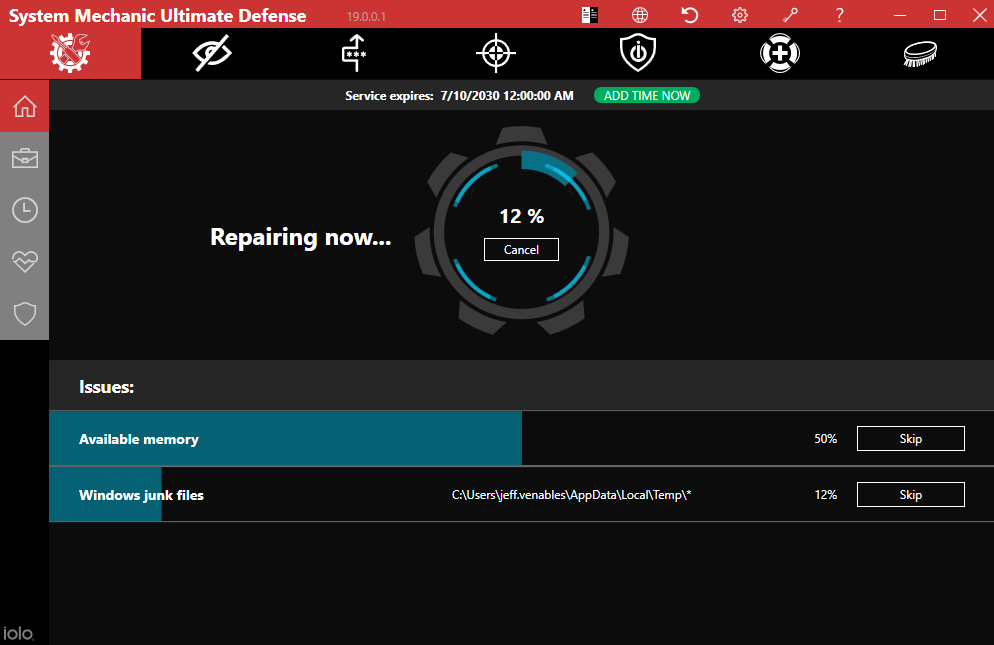 |
From
the main Dashboard you may:
-
Run an analysis of your PC and see a
snapshot view of your computer’s condition.
-
View and repair any issues detected in the
last analysis.
-
Monitor system components that impact
performance.
|
|
You
can choose to hide recommendations or see more
details about them. |
 |
| |
|
 |
Choose Quick Scan or Deep Scan,
depending how comprehensive a system analysis
you wish to perform. The time-saving quicker
option runs a subset of the tools run during the
deeper scan. |
| |
|
|
The
Toolbox contains tools within the broad
optimization categories Clean, Speed Up,
Protect, Recover and Manage. |
 |
| |
|
 |
Within the Clean menu, you will find the
following tools for ridding your PC of unwanted
junk:
All-in-One PC Cleanup
Remove Internet junk files, Windows junk files
and repair registry problems with a single click
Internet Cleanup
Remove Internet junk files, private browsing
data and more
Windows Cleanup
Remove Windows junk files, broken shortcuts and
more
Registry Cleanup
Repair registry problems
Advanced Uninstaller
Remove applications from your system |
|
Protect offers the following security
features:
System Shield
Scan the system for malware
DriveScrubber
Securely wipe all data from a hard drive
Security Optimizer
Fix Windows security vulnerabilities
Privacy Shield (Windows 10 only)
Turn off intrusive Windows personal data sharing
and other services
Incinerator
Install or uninstall the desktop file
Incinerator, a military-grade trash can that
prevents deleted data recovery |
 |
 |
The
Recover menu has tools to fix common PC
problems and recover lost data:
Search and Recover
Recover accidentally deleted files
System Troubleshooter
Troubleshoot common problems that may be
contributing to system instability
System Restore
Restore your system to a previous state |
| |
|
|
Manage will help you configure various
hidden Windows settings with the Super
Control Panel. |
 |
| |
|
 |
The
ActiveCare menu allows you to designate
issues you want System Mechanic to monitor and
repair automatically. |
| |
|
|
The
LiveBoost menu accesses both Real-Time
Boost, which automates the optimization of
your CPU, RAM and storage drives; and
On-Demand Boost, which allows you to
temporarily turn off background services with
one click to unleash more speed and power for
focused tasks like gaming or rendering video. |
 |
| |
|
 |
Enable all or most of the features in Real-Time
Boost for regular, improved PC performance: |
| |
|
|
Enable On-Demand Boost before gaming or other
specialized tasks to further focus your system
resources: |
 |
| |
|
 |
The
Security menu is where you can check
which antivirus protection you are currently
running. If you have installed iolo’s real-time
AV protection System Shield, you can manage it
here or from the shield-icon shortcut at the top
of the System Mechanic Ultimate Defense panel
(more details below). |
|
Privacy Guardian (eyeball icon) is a feature
in System Mechanic Ultimate Defense you also
install as a web browser extension. (Privacy
Guardian can also be purchased separately.)
Privacy Guardian blocks access to your sensitive
online data, device info and habits whenever you
use the internet. The desktop app features a
dashboard that lets you manage all of your
Privacy Guardian settings, view attempts to
track you and more, all in one convenient place.
Privacy Guardian thwarts efforts to gain vast
amounts of your personal information based on
your search history, shopping habits and more.
Installing the Privacy Guardian browser
extension
Before installing the Privacy Guardian browser
extensions, first make sure that your web
browsers are fully up-to-date. Second, the
latest Windows updates should be fully applied. |
 |
Even
if you typically use just one web browser, it is
recommended that you enable online privacy
protection for each of your browsers. If you
have not already been prompted by Privacy
Guardian and therefore done so, to enable
privacy protection for your browsers:
-
From the Privacy Guardian Dashboard,
click Browsers.
-
Here you will see a list of browsers
available for privacy protection.
-
Choose a browser from the list, and click
Enable.
-
Follow the onscreen steps as Privacy
Guardian walks you through adding the
browser extension for the browser.
-
Moving down the list of available browsers,
click Enable and follow the onscreen
instructions for each subsequent browser.
|
| |
|
|
Clear your browsing data
-
Open the My Tracks tab.
-
Click Clear data next to the
browser(s) you wish to clear.
-
When the clearance settings box opens, click
the boxes next to the items you wish to
clear. Items with a red square will be
cleared. Reading the description for each
item may help you decide. Among the items
you may select are cookies.
-
Note that these boxes begin as unchecked
each time you go to clear your browsing
data, to help prevent you from accidentally
clearing data you wish to keep.
-
When you are finished deciding which
browsing data to clear (including cookies),
click Clear selected data now.
-
Click the red X on the top right of
the browser-clearance notification message
to close it.
|
 |
 |
Turn off cookie clearance for specific websites
Some cookies are useful, e.g., by keeping you
logged in to trusted websites or retaining your
shopping cart orders. To whitelist certain
websites from your scheduled or manual cookie
clearance, follow these steps:
-
From the Privacy Guardian application
Dashboard, click My Tracks.
-
On the right side of the window, click the
Add or remove websites from whitelist
button.
-
You may Choose from popular options
if you are unsure which websites to
whitelist.
-
Click within the box that says Enter URL
to enter a specific website you have in
mind.
-
Review your whitelisted sites in the box
below this entry field.
-
Click Remove to re-enable cookie
clearance for any given website in this
list.
When you are finished making changes, click
Done.
|
|
Once
a computer is already infected with malware,
Malware Killer (crosshairs icon) is the
nuclear option you call upon to find and
eradicate it. Malware Killer is the perfect
complement to real-time protection, as it finds
and eradicates malware when all else fails. |
|
Scanning the system
To scan, click Scan system now and select how
broadly or narrowly you wish to scan your
computer. You can scan the entire system, or
choose specific files or folders to scan. |
 |
| |
|
 |
ByePass (arrow icon) is a web browser
extension that securely manages all your
passwords across your devices, regardless of
platform. ByePass features a remote universal
logout function called Login Guardian that lets
you log out of all websites from wherever you
are. |
|
ByePass also helps protect your online purchases
by letting you encrypt and store credit cards
that are only deployed as-needed when making
online purchases, so hackers and keyloggers
cannot steal them.
A similar local encryption feature for writing
notes enables you to store sensitive info
securely, such as PINs.
The ByePass browser extension is the main
ByePass interface:
Adding the ByePass browser extension to your
default web browser
This is the main ByePass interface and therefore
a necessary step. ByePass currently supports
Google Chrome, Mozilla Firefox, Apple Safari and
Microsoft Edge.
-
Click Install ByePass.
-
Click Add extension. After you
install the ByePass browser extension, click
on the extension’s icon in your browser.
-
Click I agree, let’s start and then
Create an account. Create your Master
Password and complete the setup of your
ByePass account.
-
It is best to use the email address
associated with your purchase of System
Mechanic Ultimate Defense. Be sure the email
matches the one you just entered with your
key on the Welcome to ByePass screen.
Here you will also think up and enter a
Master Password. This is the only password
you must remember--it will be used to log
into ByePass and manage all your encrypted
passwords, secure notes and credit cards.
-
After logging into ByePass, you can begin
creating and/or adding secure login
credentials for your various online
accounts, as well as encrypted credit cards
and notes.
|
 |
|
Using ByePass to securely store your passwords
When you first sign into ByePass, it should list
for you suggested accounts that you’ll want to
add. You can choose to have ByePass add all of
these accounts at once, or you may click on an
account such as Facebook, Twitter, Google or
PayPal to add the account’s credentials to
ByePass. |
 |
The
System Shield menu (shield icon) is a
shortcut to the features of the real-time AV
protection within System Mechanic Ultimate
Defense. You can ensure real-time protection is
enabled, view history and quarantined files and
adjust settings like automatic virus definitions
updates. |
| |
|
|
The
Search and Recover menu (medic icon) lets
you search for accidentally deleted files in
order to try and recover them. You can point to
a specific location you’d like to search, as
well as determine the location you’d like
recovered files to be saved to. |
 |
| |
|
 |
The
DriveScrubber menu (scrub brush icon)
allows you to select an entire hard drive to
wipe, and set specifications for the precise
wiping technique you prefer. |
|
With
all of these performance, protection and privacy
products at your service, you’ll unleash the
full power of your computer, as well as keep it
in pristine condition for maximum longevity.
However you use your modern Windows machine,
System Mechanic Ultimate Defense is ready to
take you places whenever you’re ready to go. |
If you have any questions/comments on the above, please email
us.
|
|
|
|
iolo's Massive 60%
Off Back to School Coupon! |
|
Back to
School season is here! Note. System Mechanic sells well
during Back to School season as it's a great option to
get a school device to last another year!
Check out 5 fun facts
on Back to School below.
-
All told,
including college students, about 78 million kids
head back to school every fall.
-
There are
about 8 million teachers in the U.S.
-
Back to
School has also become its own shopping phenomenon.
In fact, the majority of parents will spend more
than $100 on back to school shopping.
-
The
average family spends $700 in school supplies every
year, adding up to $80 billion in annual sales!
-
Why do we
give our teacher an apple? The tradition goes back
to 16th century Denmark, where teachers didn't earn
enough for food so parents would send their children
to school with an apple for them.
Through to
October 5th
iolo is running a coupon that gives 60% off either
System Mechanic 19 or
System
Mechanic 19 Pro. The code is: backtoschool
Grab HTML code for the
Back to School coupon below.
|
Coupon Deal:
Get a massive 60% off System Mechanic 19 Pro. Coupon
code: backtoschool
Coupon Code:
backtoschool
Valid From: Now
Valid To: October 5, 2019 |
|
|
|
<a href="https://click.linksynergy.com/fs-bin/click?id=[SITE.CODE]&offerid=258005.10000305&type=3&subid=0">Get
a massive 60% off System Mechanic 19 Pro. Coupon code: backtoschool</a><img border="0" width="1" alt=""
height="1" src="https://ad.linksynergy.com/fs-bin/show?id=[SITE.CODE]&bids=258005.10000305&type=3&subid=0"
> |
|
Coupon Deal:
Get a massive 60% off System Mechanic 19. Coupon code: backtoschool
Coupon Code:
backtoschool
Valid From: Now
Valid To: October 5, 2019 |
|
|
|
<a href="https://click.linksynergy.com/fs-bin/click?id=[SITE.CODE]&offerid=258005.10000304&type=3&subid=0">Get
a massive 60% off System Mechanic 19. Coupon code: backtoschool</a><img border="0" width="1" alt=""
height="1" src="https://ad.linksynergy.com/fs-bin/show?id=[SITE.CODE]&bids=258005.10000304&type=3&subid=0"
> |
If you have any questions/comments on the above, please email
us.
|
|
|
|
Important Offers
to Prioritize [Good thru 12/31/19] |
|
|
Get 50% off iolo's System Mechanic®
Ultimate Defense™; Total Performance, Protection & Privacy In One Convenient
Interface.
|
<a href="https://click.linksynergy.com/fs-bin/click?id=[SITE.CODE]&offerid=365339.10000264&type=3&subid=0">Get
50% off iolo's System Mechanic® Ultimate Defense™; Total Performance, Protection
& Privacy In One Convenient Interface.</a><img border="0" width="1" alt="" height="1" src="https://ad.linksynergy.com/fs-bin/show?id=[SITE.CODE]&bids=365339.10000264&type=3&subid=0"
> |
|
|
Get the latest Search and Recover for FREE, when you purchase System Mechanic
19 for only $39.95 [normally $89.95]
|
<a href="https://click.linksynergy.com/fs-bin/click?id=[SITE.CODE]&offerid=365339.10000044&type=3&subid=0"
>Get the latest Search and Recover for FREE, when you purchase System
Mechanic 19 for only $39.95 [normally $89.95]</a><IMG border=0 width=1 height=1 src="https://ad.linksynergy.com/fs-bin/show?id=[SITE.CODE]&bids=365339.10000044&type=3&subid=0"
> |
|
|
|
|
|
Evergreen Offers [Good thru
12/31/19] |
|
|
Get DriveScrubber® 3 for only $19.95 [normally $29.95]. Save $10
|
<a href="https://click.linksynergy.com/fs-bin/click?id=[SITE.CODE]&offerid=365339.10000163&type=3&subid=0"
>Get DriveScrubber® 3 for only $19.95 [normally $29.95]. Save $10</a><IMG
border=0 width=1 height=1 src="https://ad.linksynergy.com/fs-bin/show?id=[SITE.CODE]&bids=365339.10000163&type=3&subid=0"
> |
|
|
Get 50% off System Mechanic Business.
Coupon code: SMB-50PT-PROMO
|
<a href="https://click.linksynergy.com/fs-bin/click?id=[SITE.CODE]&offerid=365339.10000203&type=3&subid=0"
>Get 50% off System Mechanic Business. Coupon code: SMB-50PT-PROMO</a><IMG border=0 width=1
height=1 src="https://ad.linksynergy.com/fs-bin/show?id=[SITE.CODE]&bids=365339.10000203&type=3&subid=0"
> |
|
|
|
Get 50% off System Mechanic 19 Pro, System Mechanic
19 or System Mechanic
Business. Coupon code: AF50iolo
|
<a href="https://click.linksynergy.com/fs-bin/click?id=[SITE.CODE]&offerid=365339.10000114&type=3&subid=0"
>Get 50% off System Mechanic 19 Pro, System Mechanic 19 or System Mechanic
Business. Coupon code: AF50iolo</a><IMG border=0 width=1 height=1 src="https://ad.linksynergy.com/fs-bin/show?id=[SITE.CODE]&bids=365339.10000114&type=3&subid=0"
> |
|
|
|
|
|
|
|
|
|
|
New Banner
Sets For System Mechanic Ultimate Defense |
|
|
|
|
Affiliate Masterclass |
|
What Is Malware? (+9 Common Types of Malware)
In order to
effectively market products like
System Mechanic Ultimate Defense, it's critical to have a good
understanding of exactly what is Malware, and how System Mechanic Ultimate
Defense will help your customers avoid falling prey to all the main forms of
Malware.
We recently came
across a must-read article on learn.g2.com that should answer all
your questions on Malware! Be sure to read on!
Below is an excerpt of the
learn.g2.com article.
"Individuals and
businesses alike should be perpetually concerned with threats they may face
online. Malware is one of the most common issues threatening individuals
every day, and those concerned with online safety and security should
understand malware threats, along with their classifications and solutions
like antivirus software.
What is malware?
Malware is any kind of software designed to damage, or enable unauthorized
access to, computer systems.
Malware is a complex family of web-based threats that can harm individuals
and businesses of all sizes. These dangerous pieces of software typically
come in the shape of files or code that execute actions and corrupt files
stored on your computer or within your network.
Malware is most commonly used to gain control over an endpoint device, steal
data or spam unsuspecting individuals. It can be used to serve any nefarious
purpose, from stealing sensitive data and personal information (like credit
card numbers and banking information) to devastating a company’s entire
network.
As the amount of information housed on the internet has exploded, so too has
the amount of potential damage these programs can cause. Malware creators
and distributors now have more to gain, so it makes sense that the number of
malignant programs has mirrored the growth of the benign software market.
There are two reasons why hackers create and use malware: money, and the
desire to wreak havoc. Money is the primary motivating factor for the
majority of hackers and malware creators, as evidenced by the end goal of
most malware — theft — via ransom, data theft or outright monetary theft.
What is malware?
Malware comes in many shapes and sizes, but it all shares the same central
purpose: disrupting computer systems. This disruption may refer to damaging
files, stealing information, or causing any number of issues with a
computer’s functionality.
The idea of malicious programs has existed since the creation of computers,
but the first real virus is considered to be the
Creeper Worm. Creeper Worm was a self-replicating program written in the
early 1970s, designed to copy itself onto other systems and display a
harmless message.
While the Creeper Worm was absent of malignant intent, ones to follow were
not, which cemented the computer virus’ place in the pantheon of digital
infamy. Early malware came in the form of viruses that were carried from
computer to computer and injected via code on floppy disks.
The method of transmission has been significantly improved, allowing viruses
to travel at the speed of the internet. As technology has advanced and
anti-malware programs have improved, malware has kept up by becoming more
sophisticated."
To continue reading the article,
please
click here.
If you have any questions/comments on the above, please email
us.
|
|
|
|