|
Hi [FIRST.NAME],
Welcome to the May iolo affiliate newsletter. In the
last edition of the affiliate newsletter we
let you know that System Mechanic® 11.7 has been
launched.
The
best PC tune up software is now even
better!
In this edition of the newsletter we want to present you
with an article which was recently sent through iolo's lists; "Mastering
Windows 8: Where’d My Gadgets Go?" This article
discusses how to deal with the shift from
desktop gadgets to Windows 8 Apps.

First off though, to help you with your promotion for
System Mechanic®
11.7 we're offering your customers a massive
50% off retail coupon! You can grab the code to
add the coupon to your website/blog below:
Please note:
Feel free to use the copy/graphic below on your website/blog.
Mastering Windows 8: Where’d My
Gadgets Go?
How to deal with the shift from desktop gadgets to
Windows 8 Apps
If you’re a user of Windows 7 or Vista, you may have
been in for a surprise when you first started new
Windows 8. Instead of traditional gadgets that you can
select to place on your desktop, you’ve now got a Start
Screen full of apps similar to what you already use on
your smartphone or tablet device. Even though this may
be new and confusing, the apps are easy to navigate once
you get used to them.
Where to begin
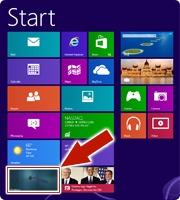 After your initial “start button panic” has subsided,
you’re ready to begin exploring the new interface.
Immediately you’ll notice that instead of the
traditional desktop, the screen in front of you is one
of tiles in various colors and sizes. After your initial “start button panic” has subsided,
you’re ready to begin exploring the new interface.
Immediately you’ll notice that instead of the
traditional desktop, the screen in front of you is one
of tiles in various colors and sizes.
Don’t
panic. If you want to access your desktop, just click on the
“desktop” tile and it will take you there. However, to get the
most out of Windows 8, you’ll want to tackle the Start Screen.
Taking control
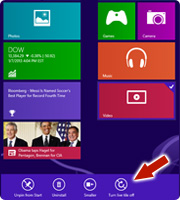 In order to feel in control of the new Start Screen interface,
first customize it to your needs. The tiles are grouped by
default under categories such as “cloud” or “work,” but you can
easily drag them around to change this. Customize the page by
choosing the apps you want and the sizes and order you want them
in. Simply drag the tiles around the screen to move them. Unlike
gadgets, which can easily make your screen look cluttered, tiles
are designed to keep everything sleek and organized. In order to feel in control of the new Start Screen interface,
first customize it to your needs. The tiles are grouped by
default under categories such as “cloud” or “work,” but you can
easily drag them around to change this. Customize the page by
choosing the apps you want and the sizes and order you want them
in. Simply drag the tiles around the screen to move them. Unlike
gadgets, which can easily make your screen look cluttered, tiles
are designed to keep everything sleek and organized.
Some tile sizes can be changed or removed to reflect
their priority. Simply right-click on the tile and a ribbon will
appear at the bottom of your screen with options to “Unpin from
Start,” “Uninstall,” and either make “Larger” or make “Smaller.”
Apps that can be uninstalled include the core default ones as
well as those you’ve chosen to download. The “Unpin from Start”
option also exists in case you want to keep an app but hide it
on the Start Screen. After you’ve unpinned an app, if you want
to open it, right-click on the general screen and the ribbon at
the bottom will come up with an “All Apps” option that will take
you to a page where every app you have is listed.
To add more apps, select the “Store” tile, which will take you
multiple lists and groupings of apps available for free or
purchase. Each of the apps has a description as well as any
reviews of the app by other users to help you decide if you
really want it.
Once you’ve selected your apps and arranged them to your liking,
simply click on the app you want to use and you’re off and
running.
An easy adaption
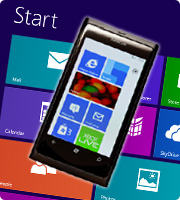 While the format is a drastic change from previous Windows
editions, if you’re familiar with smartphones and tablets, you
should be able to adapt more easily. The new operating system is
designed with touchscreens in mind, so those with computers with
that ability will appreciate the new technology. As we
continually evolve to tablets and smartphones, the likelihood
that you will be using touchscreens in the near future is high.
While you may not have one now, adjusting to the new format of
Windows 8 may help you stay ahead of the user experience curve. While the format is a drastic change from previous Windows
editions, if you’re familiar with smartphones and tablets, you
should be able to adapt more easily. The new operating system is
designed with touchscreens in mind, so those with computers with
that ability will appreciate the new technology. As we
continually evolve to tablets and smartphones, the likelihood
that you will be using touchscreens in the near future is high.
While you may not have one now, adjusting to the new format of
Windows 8 may help you stay ahead of the user experience curve.
To keep your PC ahead of the performance optimization curve, try
iolo’s System Mechanic on your Windows 8 PC. And to fully enjoy
the benefits of Windows 8, make sure your PC is ready for the
increased load on memory with the iolo’s 8 Winspresso™ app,
designed exclusively for Win 8 and available to download for
free at the Windows store. Plus with
Winspresso™ comes the enhanced PC Health Status App
designed specifically for Windows 8, which you can use to keep
track of your system efficiency and health status at a glance,
so you can get more out of your PC.
iolo's Products
are Available Through a Full Product Data Feed
Do you offer price shopping
comparison tools to your consumers? Would you like to
receive a data feed of iolo's products? If so, then
please
contact me.
Product Bundle: System Mechanic 11.7 PLUS Search and
Recover. Only $39.95 [Save $49.95!]
We're pleased to announce an exclusive offer just for
affiliates. You can now offer your customers a bundle of
the following products:
1.
System Mechanic 11.7 [Regular price: $49.95]
Everything you need to fix and speed Up Your PC.
2.
Search and Recover. [Regular price: $39.95]
Rescues accidentally deleted files, photos, MP3's & more.
Great news: through the link below your customers can purchase
both titles for only $39.95! This means that they'll save a
massive $49.95.
Check
out a selection of banners for this campaign you should consider
adding to your website/blog:
There are lots more banner sizes available for this campaign
through Linkshare. If you have any size requests, or
feedback, for the banners above please
email me.
Add Promotional Videos To Your
Website/Blog
Would you like to add high quality videos that promote
iolo's products to your website [in less than 2
minutes]? Now you can! Check out the links below:
Top Ten Reviews: System Mechanic 11 Review
System Mechanic
is featured on CBS for 'Clean Your Computer Day'
System Mechanic Promotional Video
Please note:
In order to add the videos to your website/blog, follow the
steps below:
1. Click on the "Share" button
underneath the YouTube video
player.
2. Click on the "Embed" button
next to the YouTube URL.
3. Copy and paste the resulting
code where you want the video to
display on your website/blog.
Calling All Email Marketers!
If
you have a list that you think might be interested in iolo's
software I'd like to speak with you! We have a lot of [tested
and proven] messages that can be used by email marketers through
their lists. Email me
for more details.
What Customers Are Saying...

Here're a Handful of Reasons Why You
Should Work With Us:
- High
Conversion Rate. We convert your traffic! iolo's
respected brand, high quality software, low price point and
great value results in a conversion rate that averages 2%
across all earning affiliates. [Our top affiliates convert
at over 5%.]
-
High Commission Rate: We'll pay you 30% on each and
every sale you make through the iolo affiliate program.
- Trusted Program Management. iolo's affiliate
program is run through the Linkshare network and
professionally managed by
AMWSO.
- 45 Day Cookie. The customers you refer to us don't
have to buy right away for you to profit. We have a 45 day
tracking cookie so even if they return to our website and
purchase weeks after visiting through your site we'll still
pay you.
- Monthly Newsletter Support. As an iolo affiliate
you'll receive an informative monthly email that will give
you the tools/resources to better market iolo's software.
We'll also keep you updated on affiliate competitions,
activation bonuses, program updates etc.
- Keyword Support for CPC Campaigns. iolo offers
affiliates full support for paid search campaigns.
Email me for a full keyword list.
- Parasite Free Program. As with all AMWSO managed
programs the iolo affiliate program is parasite free, and
always will be.
- High Quality Content. iolo offers affiliates high quality
content that can be used for Web and Email Marketing.
Email me for more information.
Have a great day!
James D. Nardell
iolo Affiliate Management Team
Email:
James.Nardell@iolo.com
Phone: (805) 624-5669
IM -
JamesNardell@hotmail.com [MSN Messenger]
IM -
JamesNardell@gmail.com [Google Talk]
http://www.iolo.com |
iolo Website
http://www.amwso.com/iolo.php | Affiliate Support
Website
|




