|
Please note:
Feel free to use the copy below on your website/blog.
Many people use their
PCs for years without ever opening the Command Prompt. The
Command Prompt, aka Command Line Interface or Command Language
Interpreter, is used to type lines of text directly to your
operating system or specific programs, without going through the
Windows® Graphical User Interface (GUI). These lines of text are
called command lines. The Command Prompt was designed to mimic
the command line functionality in DOS, but it is not actually
DOS.
Command lines
are commonly used to automate tasks using scripts and
batch files. They also allow you to perform advanced
administrative functions and troubleshoot Windows
problems.
Still, many users are not all that comfortable venturing
out of Windows to enable their computers to perform
certain actions. Yet understanding the basic principles
of the Command Prompt is not difficult; like the Windows
Run box, getting a bit more comfortable in there opens
you up to a whole new level of operability.
The following are some useful and popular commands:
-
Cd
displays the drive letter and folder that you're
currently in and is also used to change the
directory you're working in.
-
Chkdsk
stands for check disk, and is used to identify and
correct certain hard drive errors.
-
Cmdkey
shows, creates or removes stored user names and
passwords.
-
Dir
displays a list of files and folders contained
inside the folder that you're currently working in.
-
Fastopen adds an app's location data to a list
that enables it to launch much faster because
Windows doesn't need to hunt for it across the hard
drive. (The fastopen command is not available in
64-bit versions of Windows.)
-
Find
allows you to search for a specific string of text
in one or more files.
-
Recover
can help you recover data from a defective hard
disk.
-
Robocopy stands for Robust File Copy and is used
to copy files and directories from one location to
another.
-
Schtasks schedules programs or commands you
specify to run when you want them to.
-
Taskkill is an alternative to Windows Task
Manager and lets you close specific apps that are
currently running.
-
Where
searches for files that match a specified pattern.
Tips for getting the most out of the Command Prompt
Within the
Command Prompt, users enter a valid command and optional
parameters. The command then performs whatever task it's
designed to--but do know that commands must be entered
into the Command Prompt precisely each time or the
command will not execute.
To open the Command Prompt, simply type cmd in
the Run box or the Start search box and it will be
called up. It is from within here that you have several
lesser known options for making your work within the
Command Prompt itself easier.
Enable copy/paste
To easily copy and paste text in the Command Prompt as
you can in the Windows GUI (i.e., Ctrl+C,
Ctrl+V):
-
Right-click the Command Prompt title bar
-
Select
Properties
-
In the
Properties window under the Options tab,
enable QuickEdit Mode
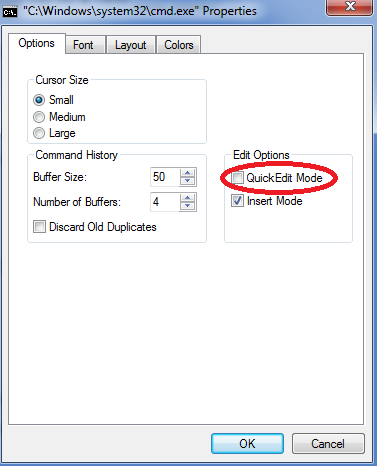
Now you'll be
able to select text with your mouse. Press Enter
to copy the selected text to the clipboard. Another
mouse click will paste it
Copy commands to the clipboard
This is very handy when you need to share the text of a
command with colleagues--e.g., to email a group of
people a specific error message you're getting.
The command
will be copied to the Windows clipboard. (Note that
Shift+\ will type the | symbol.)
Drag and drop files
From within the Command Prompt, this trick allows you to
copy the exact path to a folder or file, e.g., to run
the file or to change the current directory.
The path of
the dropped file or folder will show up in quotes.
Get help
When you are aware of a certain command's existence, but
need to know more details on how it actually functions,
help is never far away.
If the
command is valid, the Command Prompt will give you all
the info it has on it.
Run cmd right from the folder you want to navigate to
Remember, the Command Prompt ordinarily opens at the
Root Directory level. This is a great trick for avoiding
cumbersome directory-hopping from within the Command
Prompt (via the cd command) when you need to work
on a folder that may be buried deeply within many other
sub-folders.
-
Holding
the Shift key, right-click on any folder
icon within Windows File Explorer
-
Select
Open command window here
The Command
Prompt will open directly with the path to that specific
folder.
These tips will hopefully make the Command Prompt less
intimidating while giving you useful shortcuts to get
the most out of this powerful PC administrative tool.
To
automatically clean, repair, stabilize, speed up and
protect your computer--whether you're running Windows
10, 8, 8.1, 7 (XP/Vista up to v16.0.0.10)--choose the
world's most comprehensive PC performance solution,
System Mechanic 18.5.
Windows is a registered trademark of Microsoft
Corporation in the United States and other countries.
|